
Fox News has recently highlighted a troubling issue affecting Mac users. A new malware called ClickLock uses a deceptive technique to infiltrate Mac systems. It tricks users into executing a command in Terminal, leading to malicious software being installed without their knowledge.
How ClickLock Operates
ClickLock initiates its attack by displaying a fake ‘verify you are human’ page. This page instructs users to copy and paste a command into Terminal, masking the installation of malware with a progress bar. Once executed, a password prompt resembling a typical macOS request might appear. Cancelling this doesn’t stop the malware. It might reappear after login attempts, disrupting normal operations by closing apps like Finder and browsers.
Research from Group-IB revealed ClickLock accessing sensitive data like passwords, browser activities, and cryptocurrency wallets. The malware even uses a backdoor component for remote access by attackers after it has executed its primary functions.
Discovery and Spread
Group-IB identified ClickLock through the VirusTotal service. However, during their analysis, none of the security tools detected it. Active since June 2026, the campaign has impacted over 100 systems across 33 countries.
Fake Verification Tactics
ClickLock spreads using a tactic coined as ClickFix. It deploys fake error messages or verification prompts that trick users into thinking a problem requires fixing via specific terminal commands. Once the command is entered, the malware proceeds with its installation while seemingly reassuring users of human verification.
Potential Damage
Once inside, ClickLock can shut down applications continuously and pressure users to input their password. This makes the system appear dysfunctional, coercing users into entering login credentials. It also exploits browser vulnerabilities to fetch sensitive information stored in password managers and cryptocurrency wallets.
Security Measures and Recommendations
Avoid Clicking Suspicious Links
If a website directs you to use Terminal, leave the site immediately. Legitimate processes do not require manual Terminal commands. Messages and designs may seem genuine, but they can be deceptive ploys.
Verify Commands
Before executing any unfamiliar Terminal command, consult a trusted tech professional. Commands can alter system settings or download harmful software.
Challenge Unusual Password Prompts
Unexpected password requests, especially those unrelated to running applications, warrant caution. When unsure, dismiss the prompt.
Maintain Up-to-Date Security
Ensure macOS and security tools are regularly updated. Built-in macOS protections like Gatekeeper and XProtect help defend against new threats. However, they are not foolproof against all manual command executions.
Respond to Suspicious Activity
If your Mac starts closing apps or requesting passwords without a reason, force shutdown by pressing the power button for 10 seconds. Restart in Safe Mode and seek professional help. Disabling Wi-Fi can prevent further data transmission.
Protect Your Credentials
Use a separate device to alter passwords of crucial accounts like your email and Apple accounts. Check for unfamiliar connected devices and prompt changes if unauthorized access is suspected.
Conclusion
ClickLock malware exploits user interaction with Terminal to gain unauthorized access. The key takeaway is to remain vigilant about commands and suspicious system behavior. By staying informed, users can better safeguard their systems from these threats.
For more detailed guides and to stay updated with cybersecurity tips, visit CyberGuy.com.
 Debate Continues Over Virginia’s Data Center Energy Plans
  Trump Suggests Renaming AI to ‘Super Intelligence’
  The Rise of Data Centers and AI Development
  How China Uses AI to Challenge U.S. Dominance
 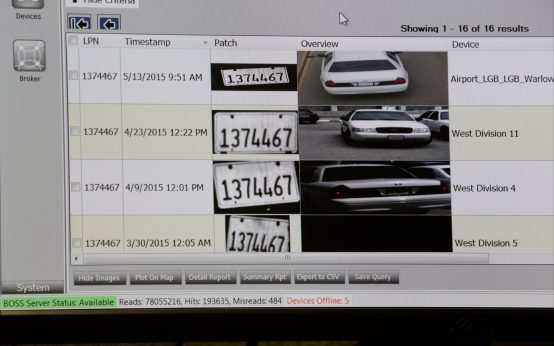 Controversy Surrounding Automated License Plate Readers (ALPRs)
  U.K. Test-Fires U.S. Torpedo from XV Excalibur